Screens
A tour of the Obsign app. Every image here is generated automatically from the app’s own browser test harness across named scenarios, so the pictures track the real UI and cannot quietly go stale.
Getting started
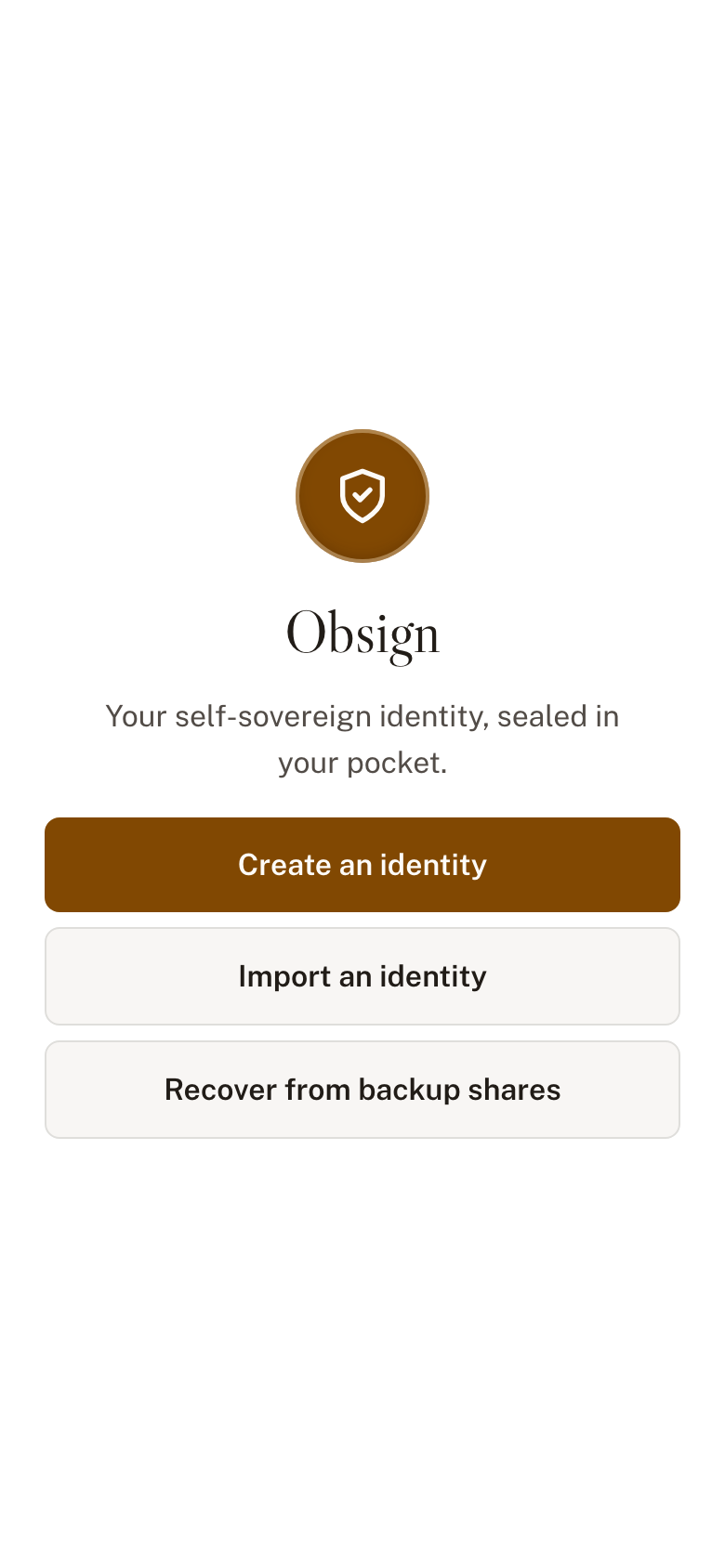
Section titled “Getting started”The first launch asks a single question — what’s your situation? — and routes you from your answer: starting fresh, bringing in an account you already have, rebuilding from your backup shares, or getting off a server that’s gone.
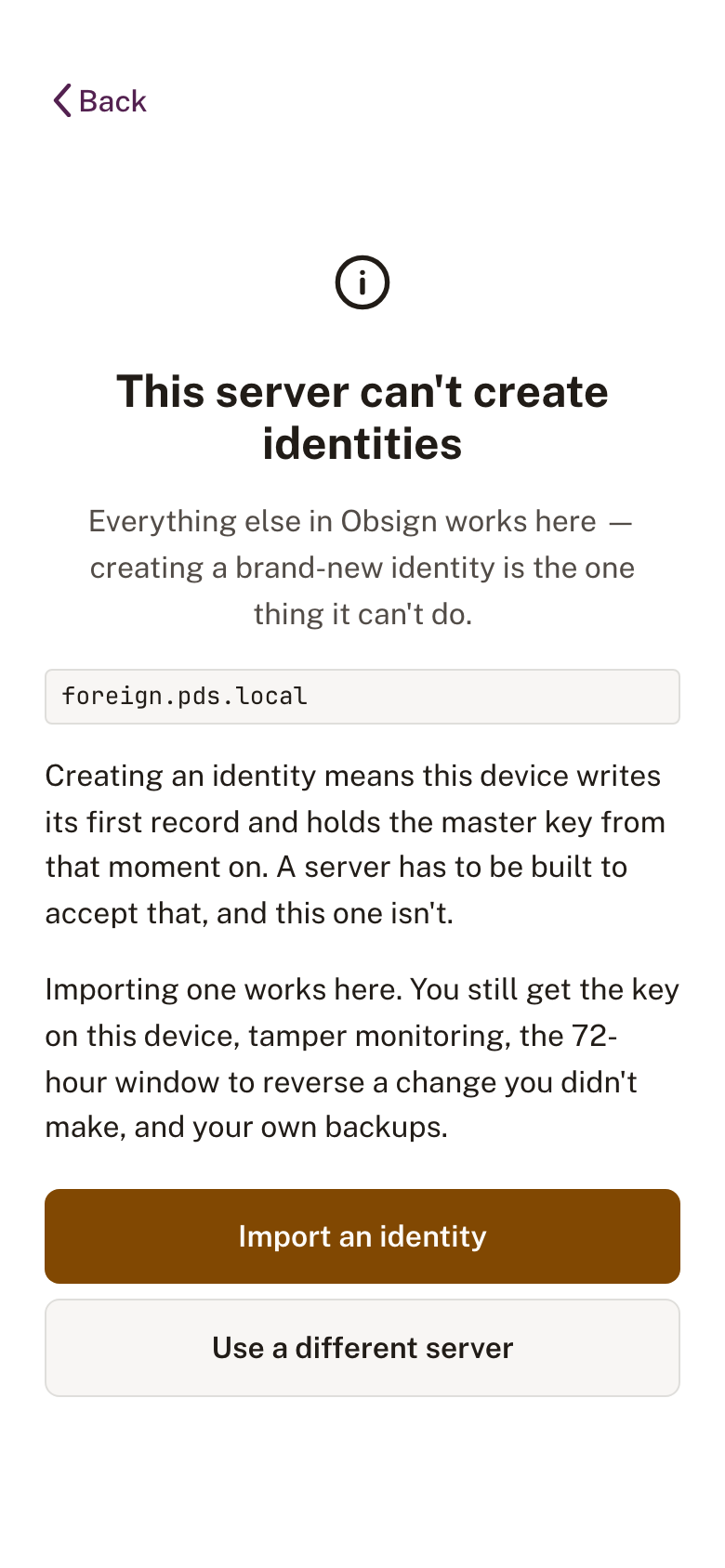
Creating an identity needs a Custos server. Point the wallet at one that only speaks the standard lexicons and it says so on the server screen, before you have filled anything in, with import one tap away.
Recovering from backup shares
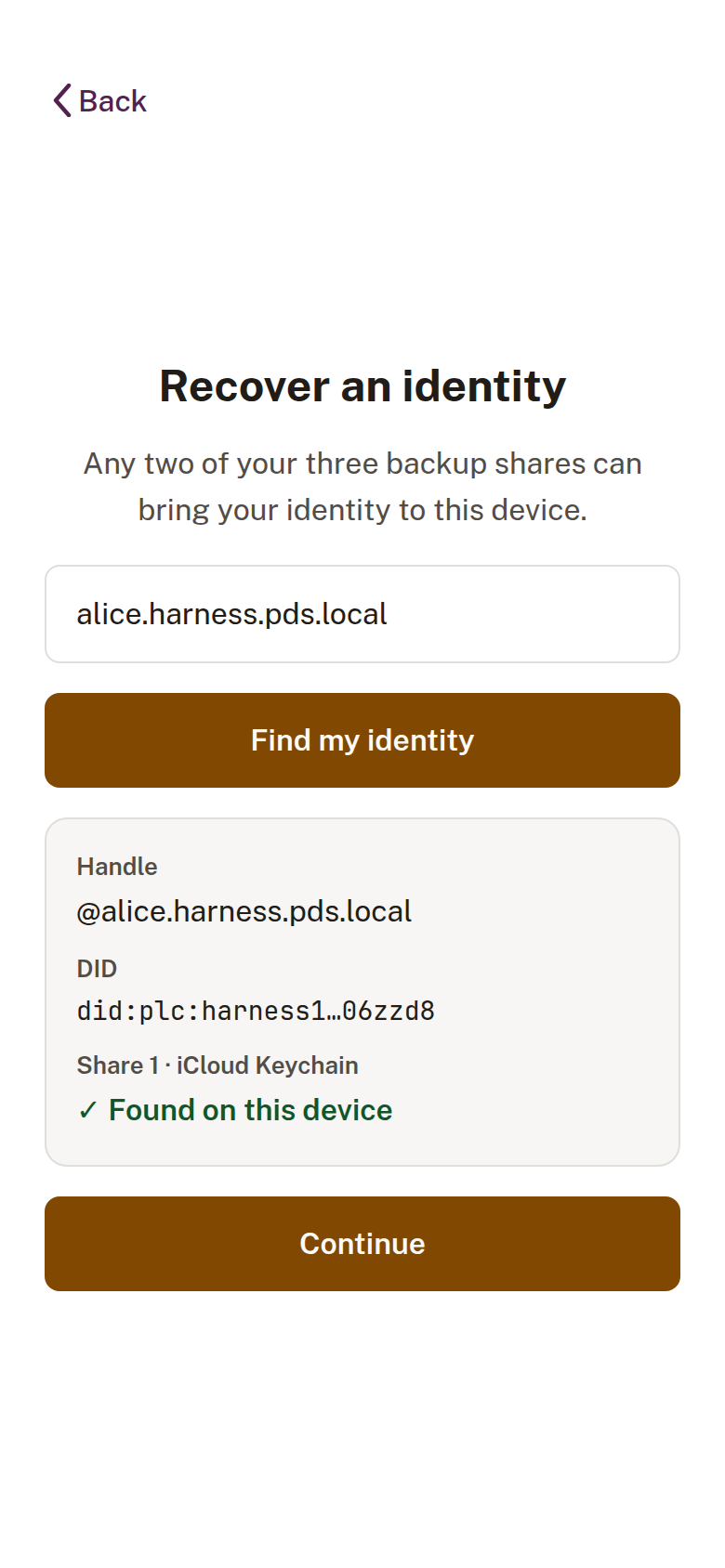
Section titled “Recovering from backup shares”If your phone is lost, any two of your three backup shares can bring your identity to a new device. Recovery starts from your handle or DID; Share 1 is loaded automatically if iCloud Keychain carried it to the new phone. When it didn’t — iCloud Keychain was off, or the identity predates Obsign syncing that share — the screen says so and your saved Share 3 takes its place. See 2-of-3 Shamir backup.
With one share in hand, the second can come from your server’s escrow (released with an emailed code) or from the word-phrase backup you saved.
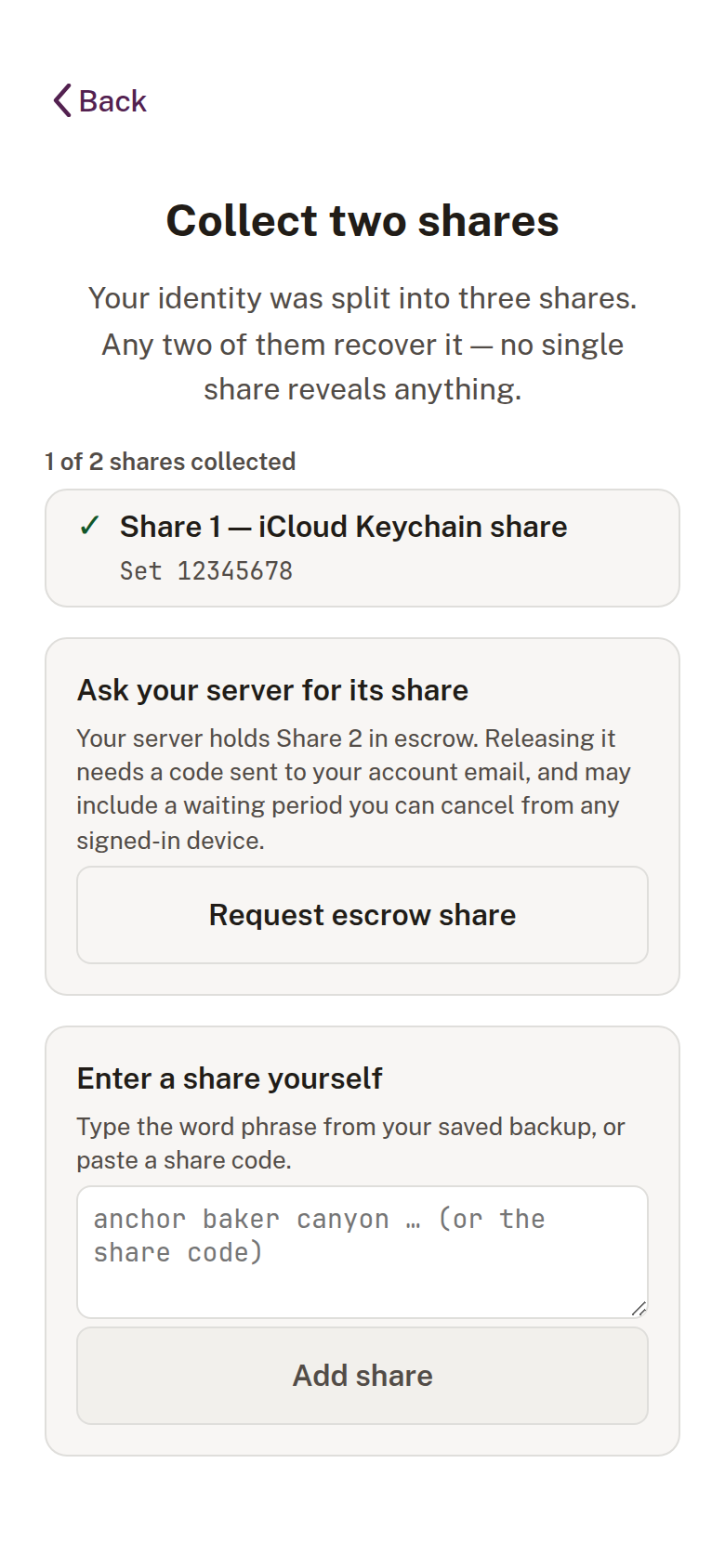
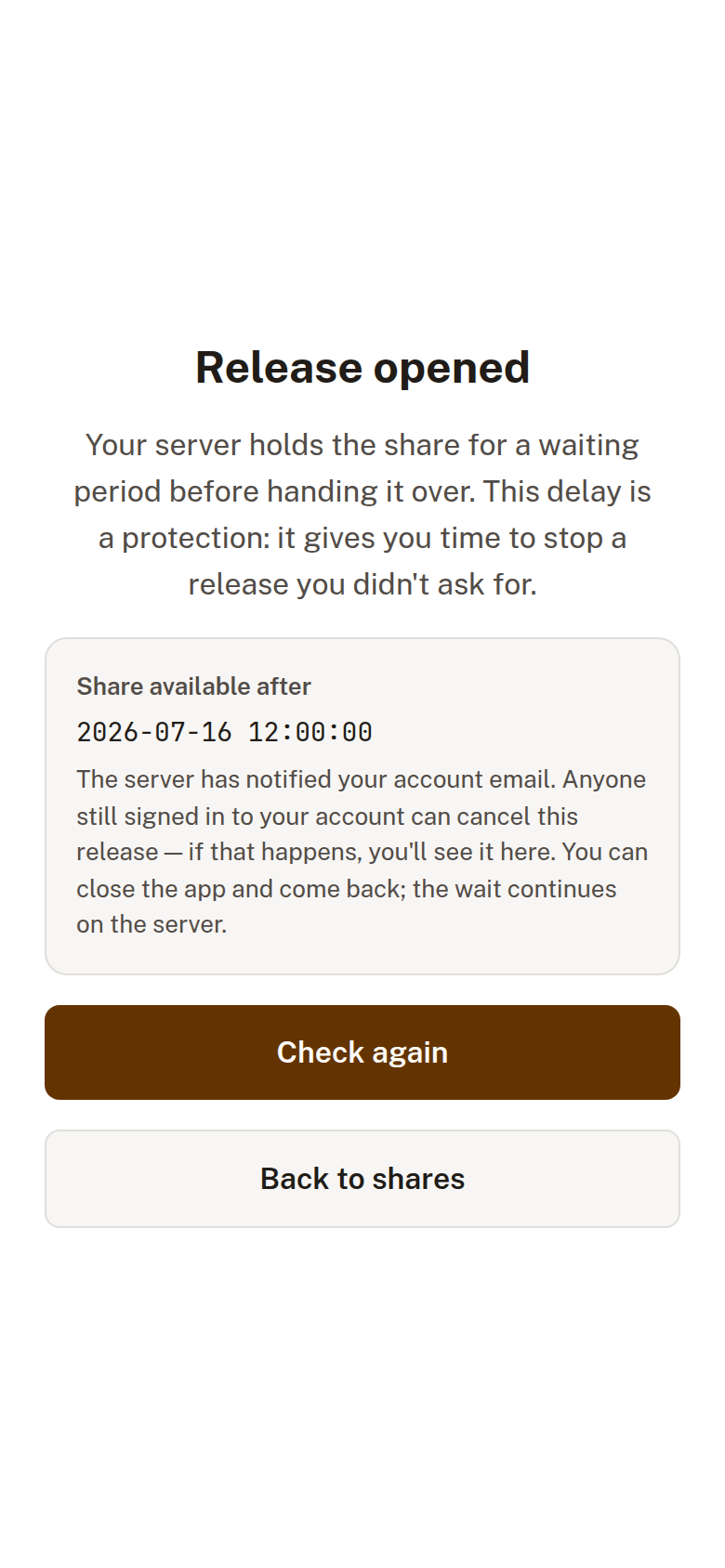
A server can hold the escrow share for a waiting period before handing it over. The delay is a protection — anyone still signed in to your account can stop a release they didn’t ask for, and the wait continues on the server even if you close the app.
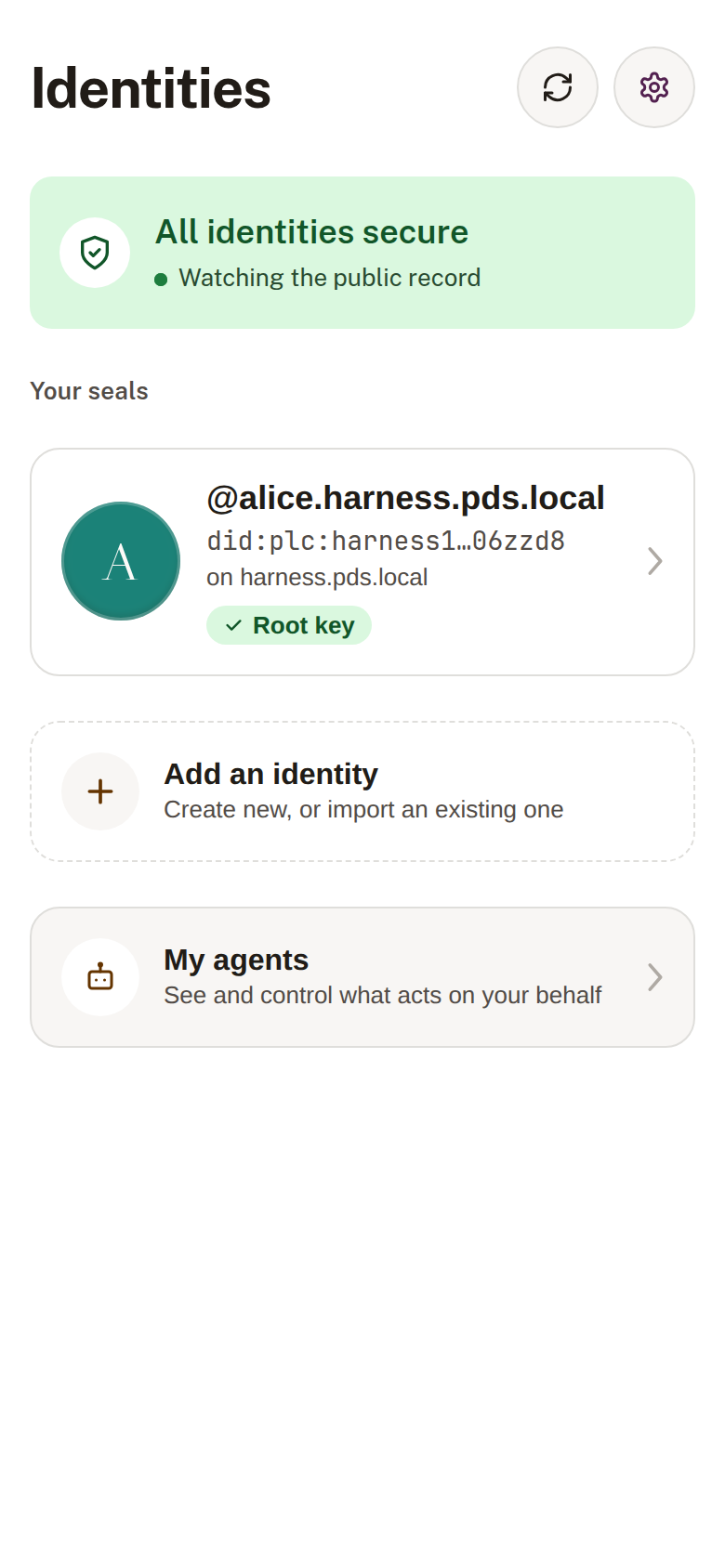
Your identities
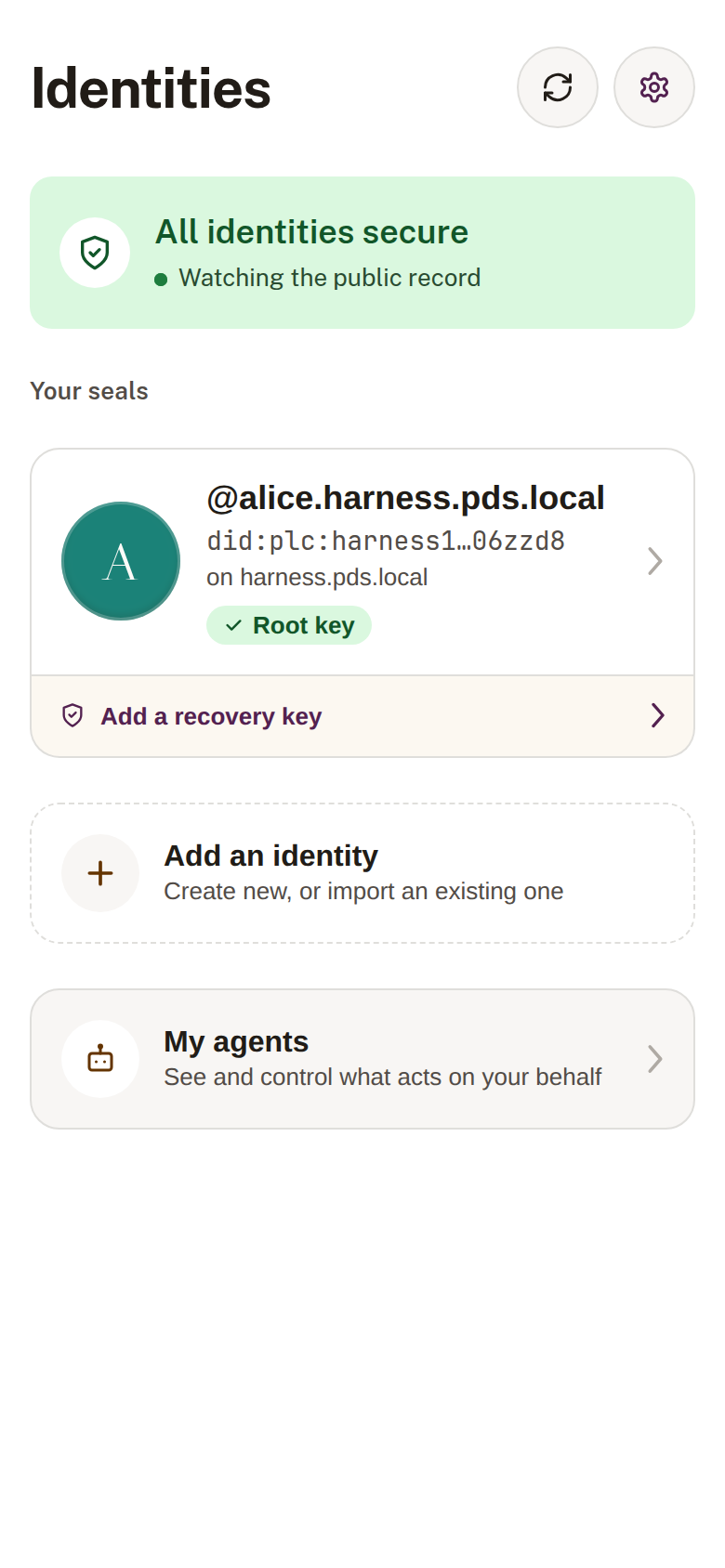
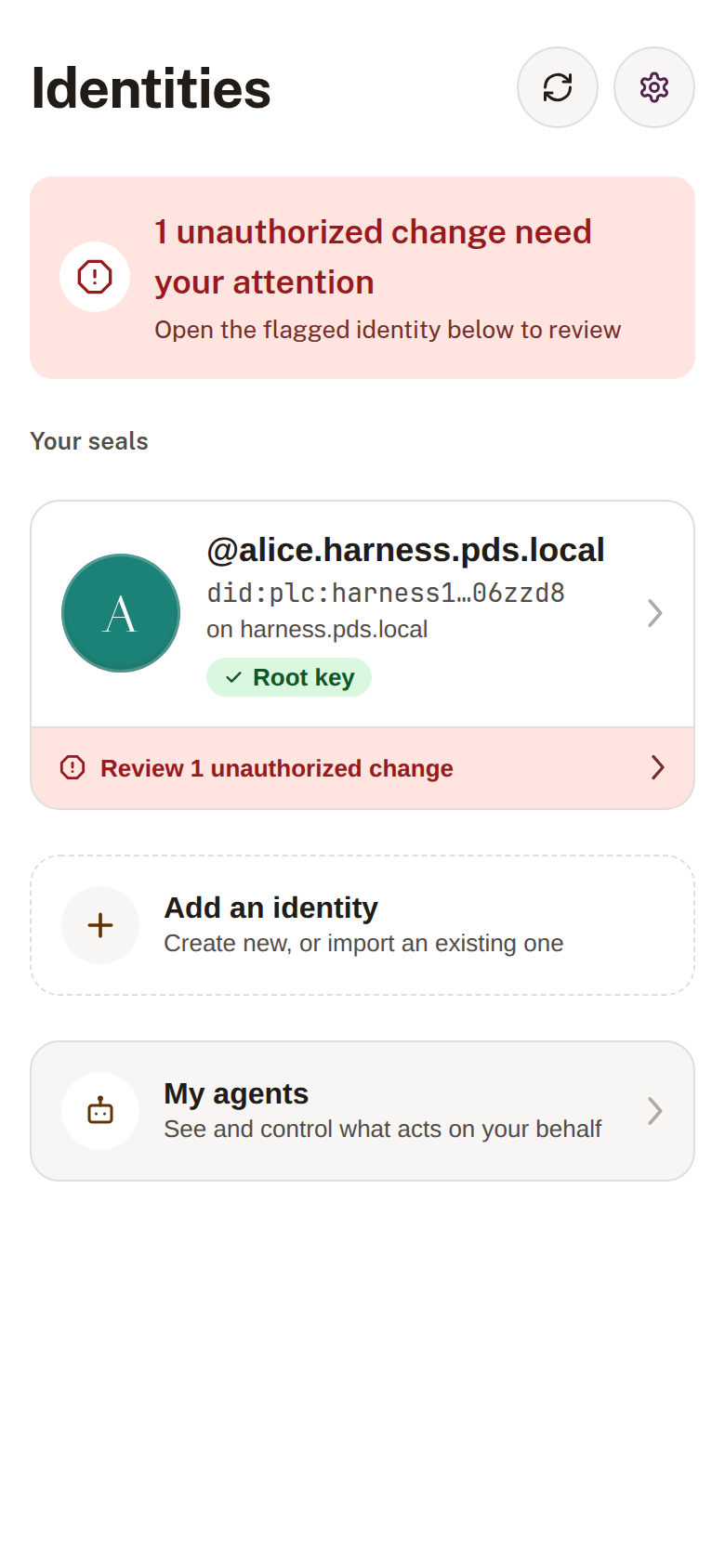
Section titled “Your identities”The home surface lists your seals with tamper monitoring shown live at the top.
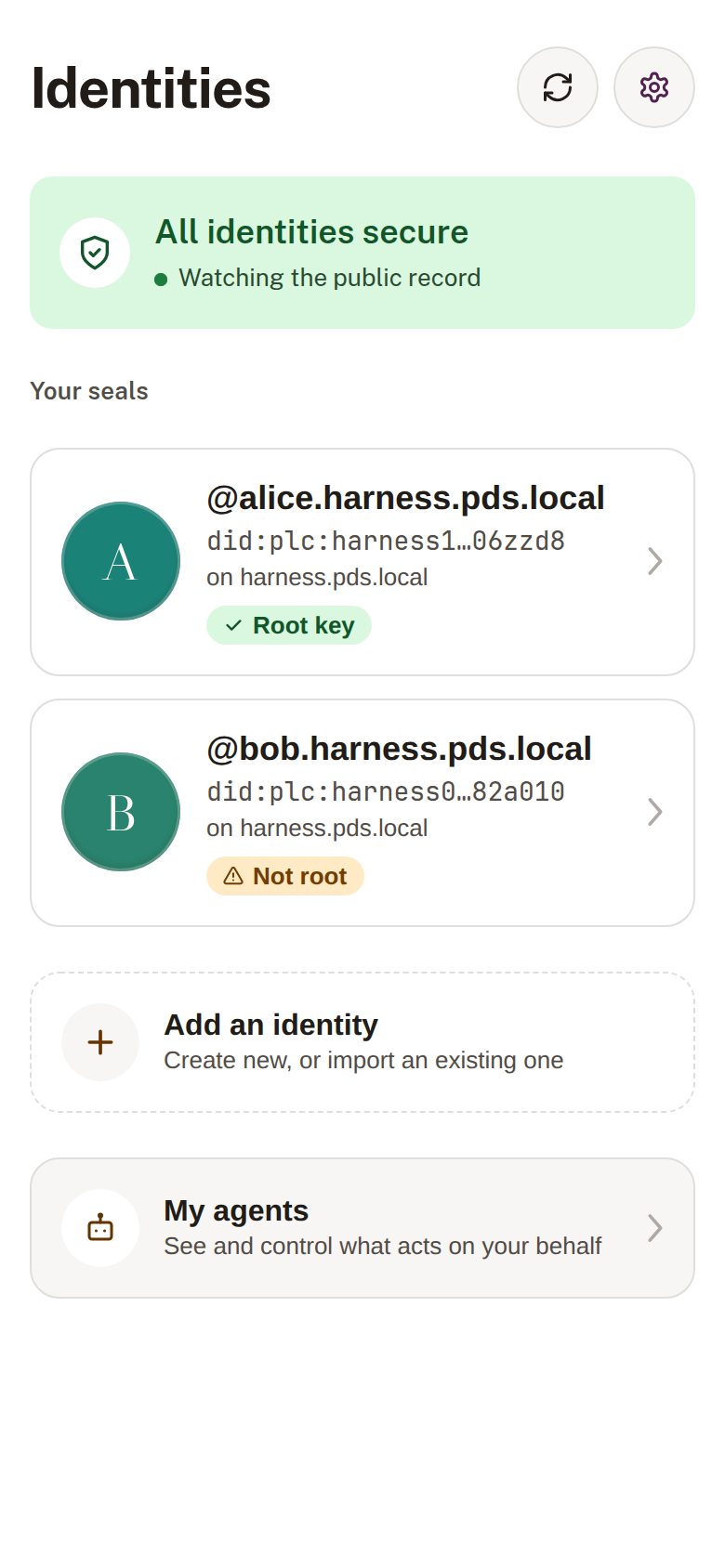
A single wallet can hold several identities; the root-key badge is tracked per identity.
Tapping an identity opens its DID document, decoded. A current-model identity carries three rotation keys — your device key, your recovery key, and the server’s key.
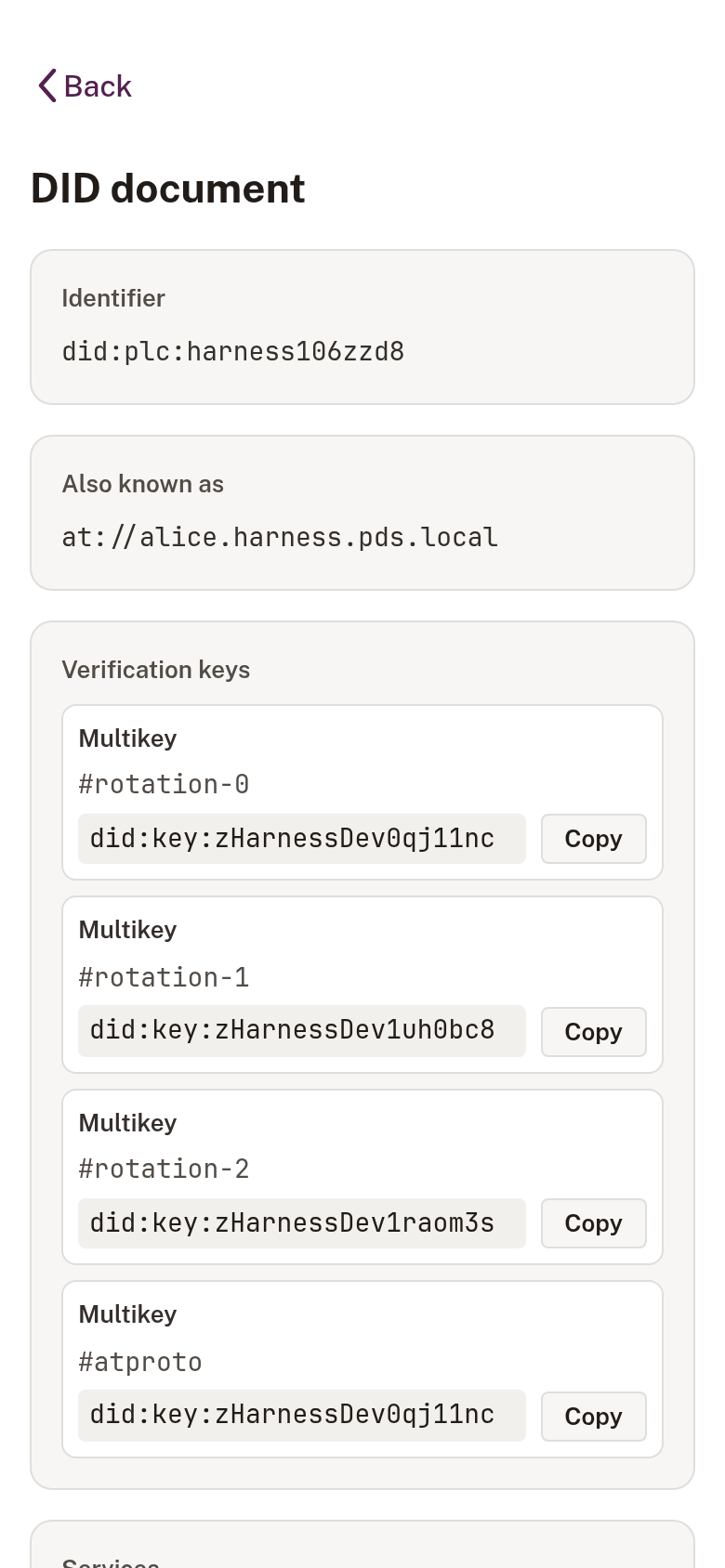
An identity created before the recovery-key model was introduced is offered a calm, one-tap upgrade on the home surface — an improvement, not an alarm.
Signing in to other apps
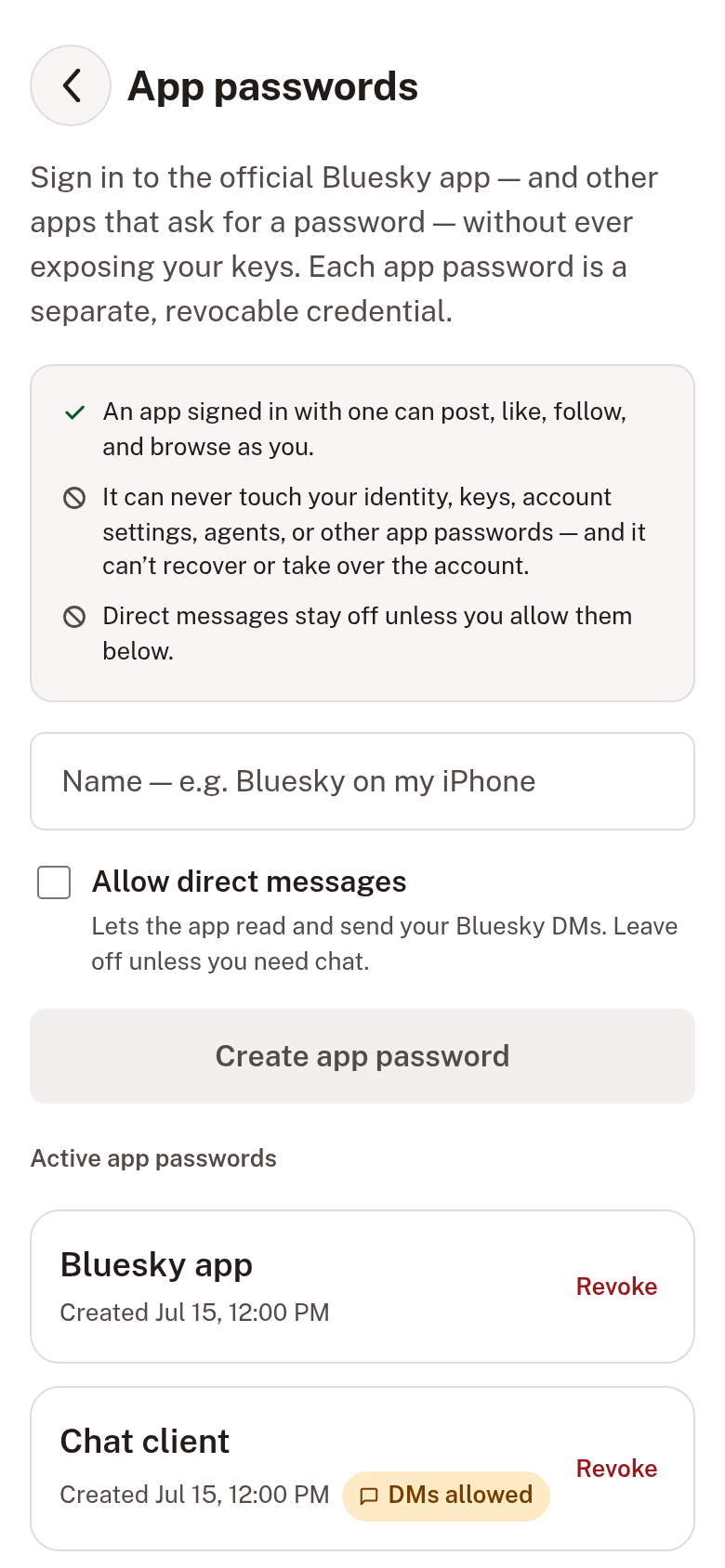
Section titled “Signing in to other apps”App passwords are separate, revocable credentials for signing the official Bluesky app — or any app that asks for a password — into your account without ever exposing your keys. Direct-message access is off unless you allow it per credential.
Agents
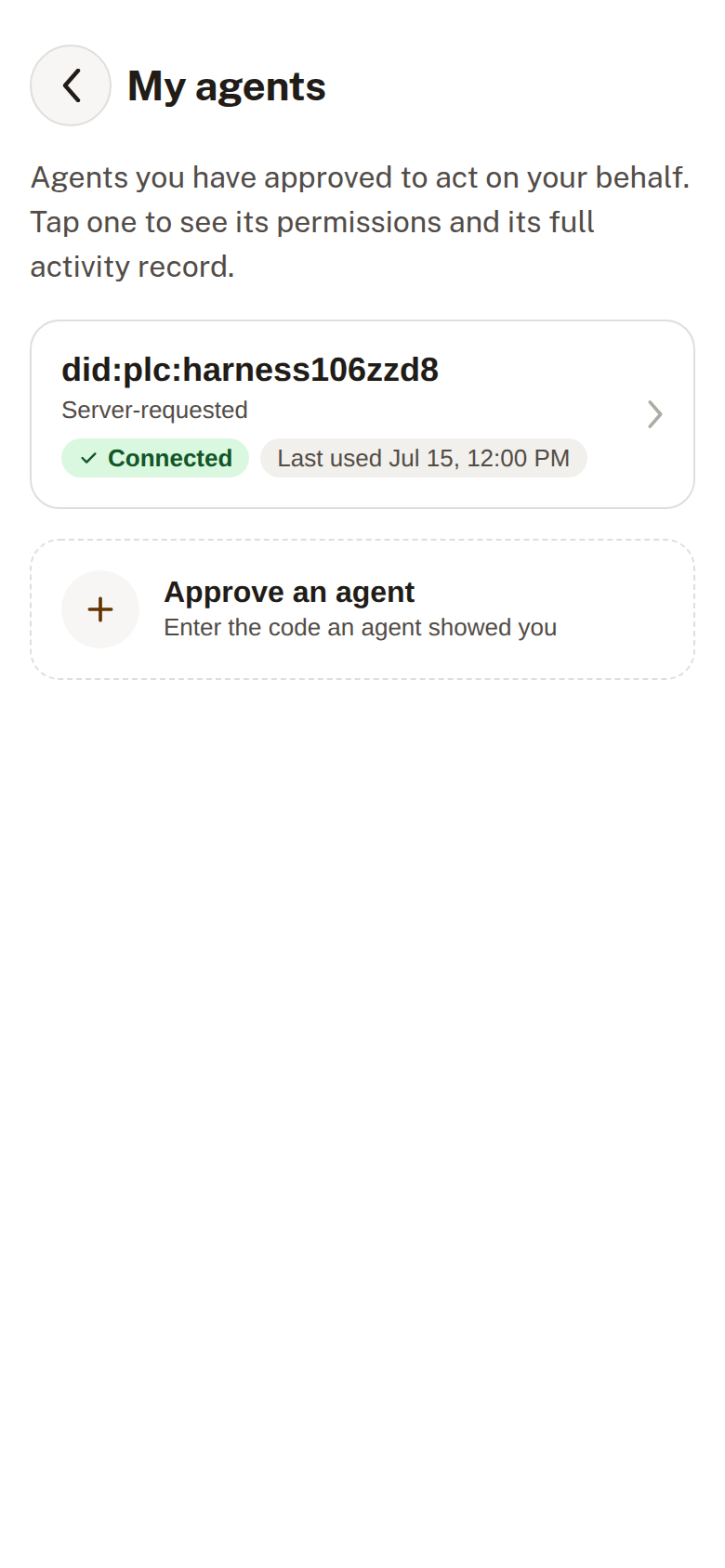
Section titled “Agents”Agents you have authorized to act on your behalf are listed under My agents, each with its permissions and full activity record.
Settings
Section titled “Settings”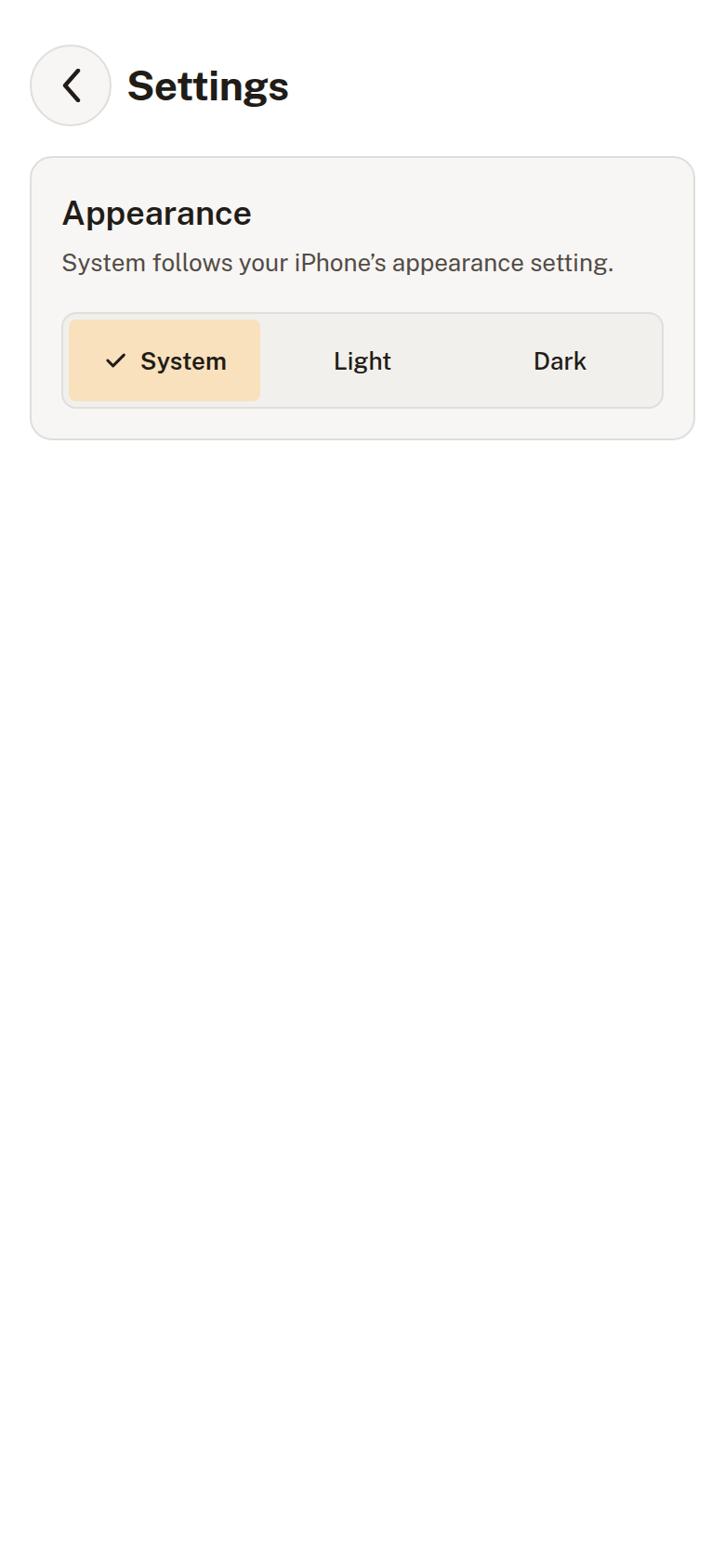
Backing up your content
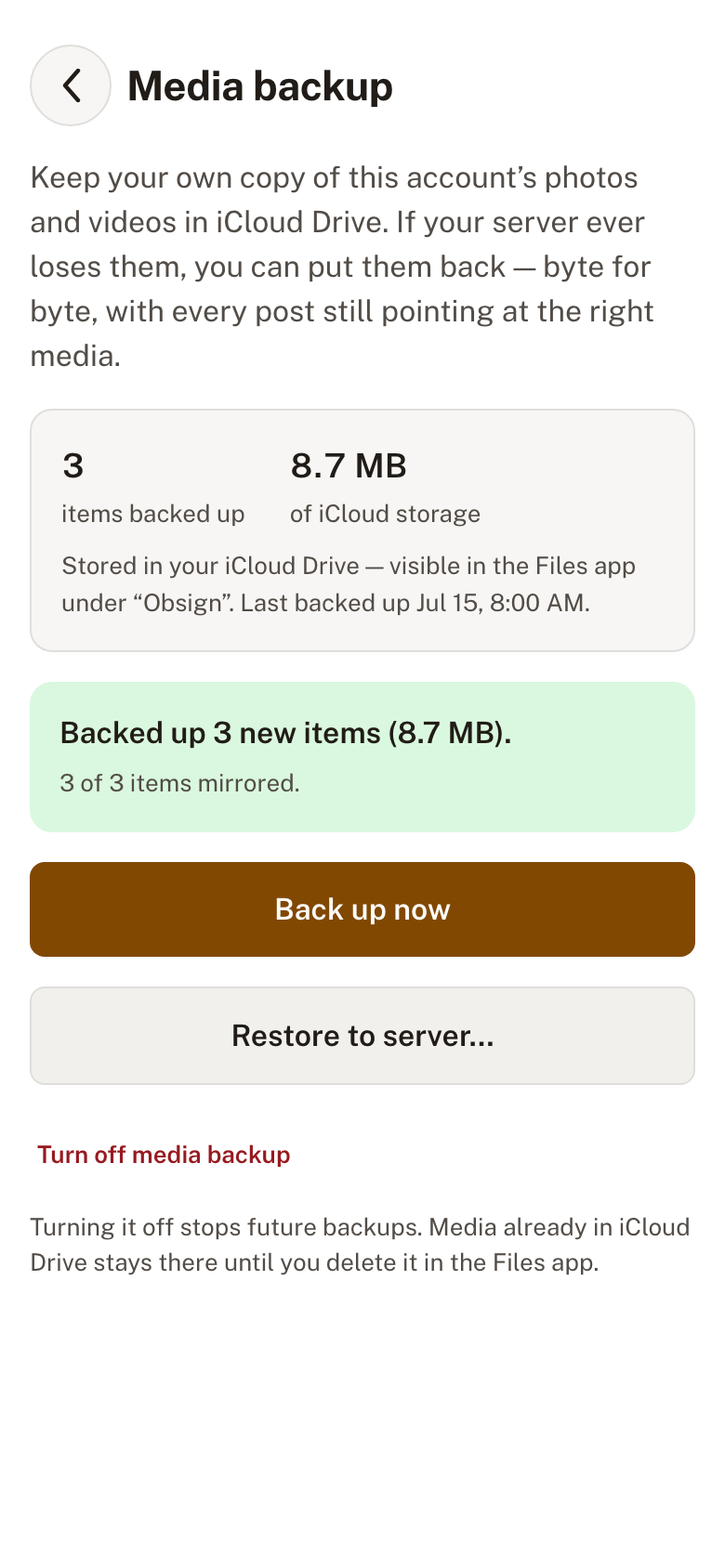
Section titled “Backing up your content”The Media backup screen (opened from an identity) holds two backups you control: your media and your posts.
Choosing Back up media keeps your own content-verified copy of that account’s photos and video in iCloud Drive, restorable to your server byte for byte if the server ever loses the originals. The mirror size is always shown.
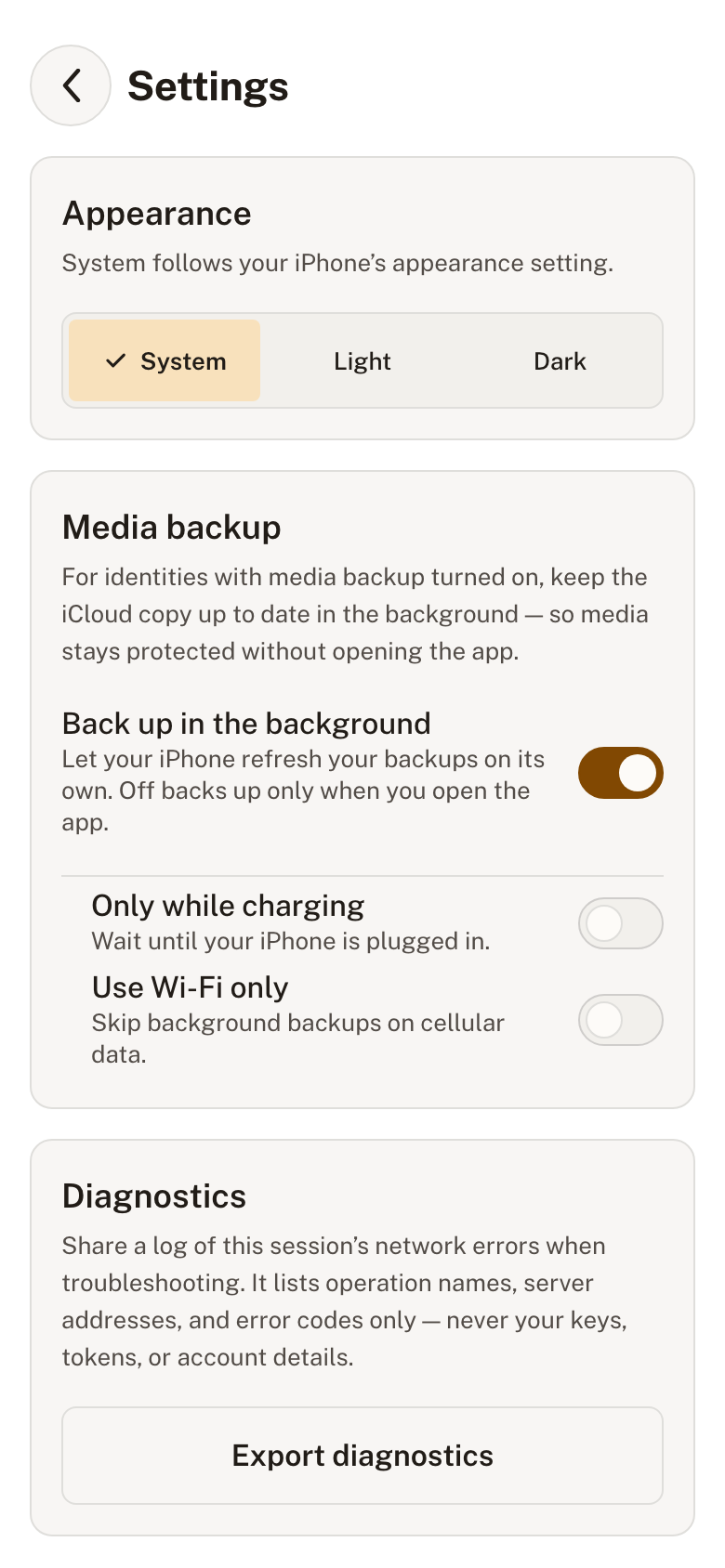
A Media backup section in Settings keeps opted-in identities topped up in the background, with controls to turn that off, restrict it to while charging, or skip cellular data.
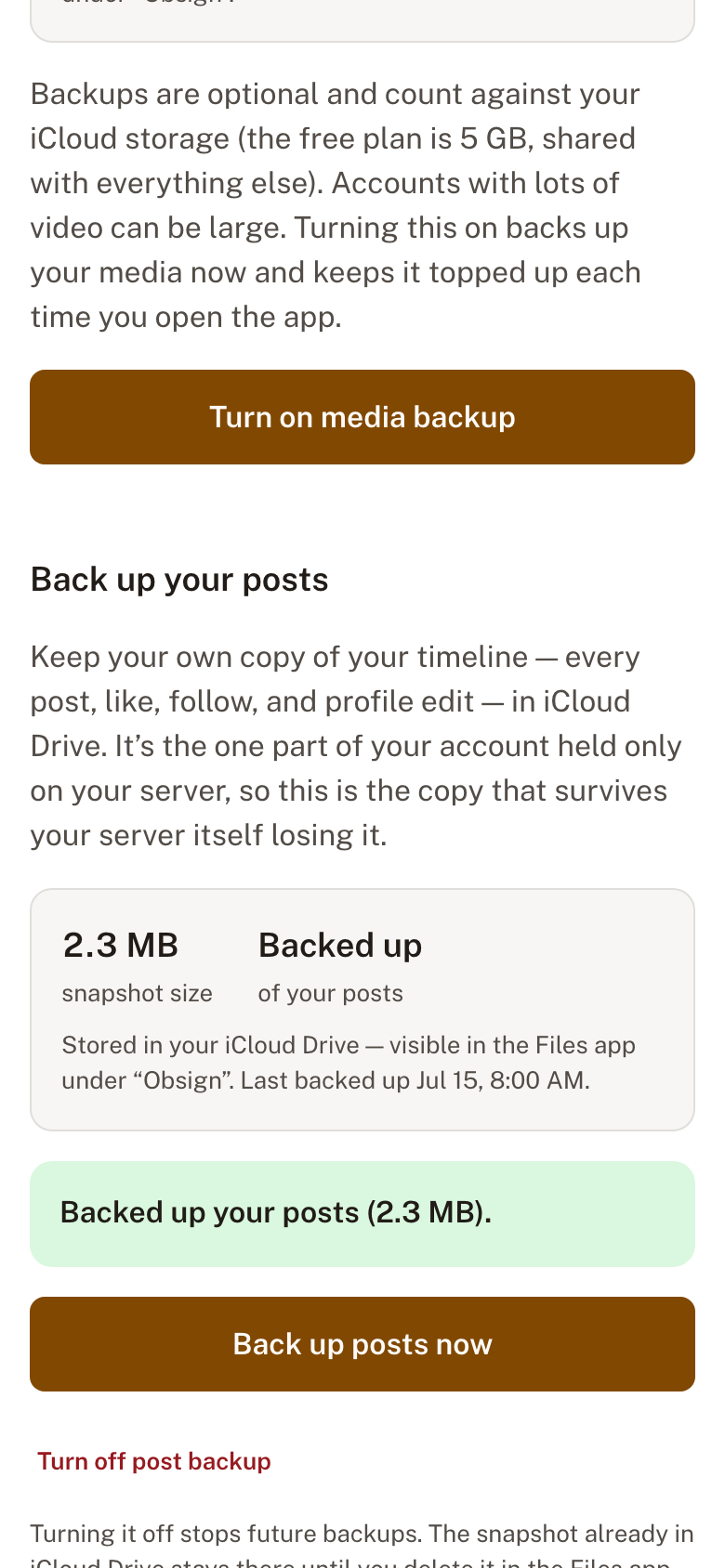
Below the media controls, Back up your posts mirrors an integrity-checked snapshot of your repository — every post, like, follow, and profile edit — into the same iCloud Drive. It’s the one part of your account that otherwise lives only on your server.
When something is wrong
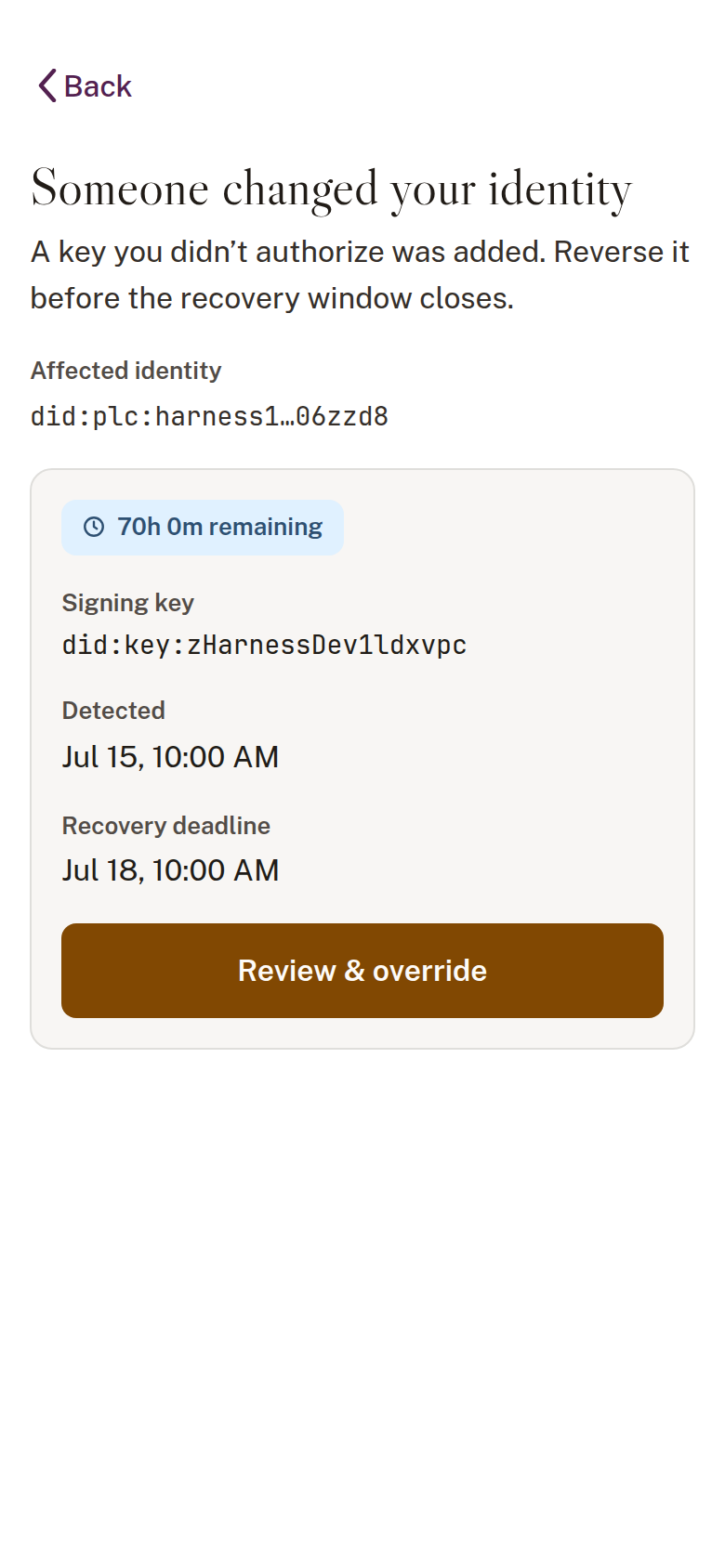
Section titled “When something is wrong”If Obsign detects an unauthorized change to your identity’s public record, the home surface raises an alert — status is always shown with text and an icon, never color alone.
Opening the alert shows the change and a live countdown of the 72-hour recovery window.
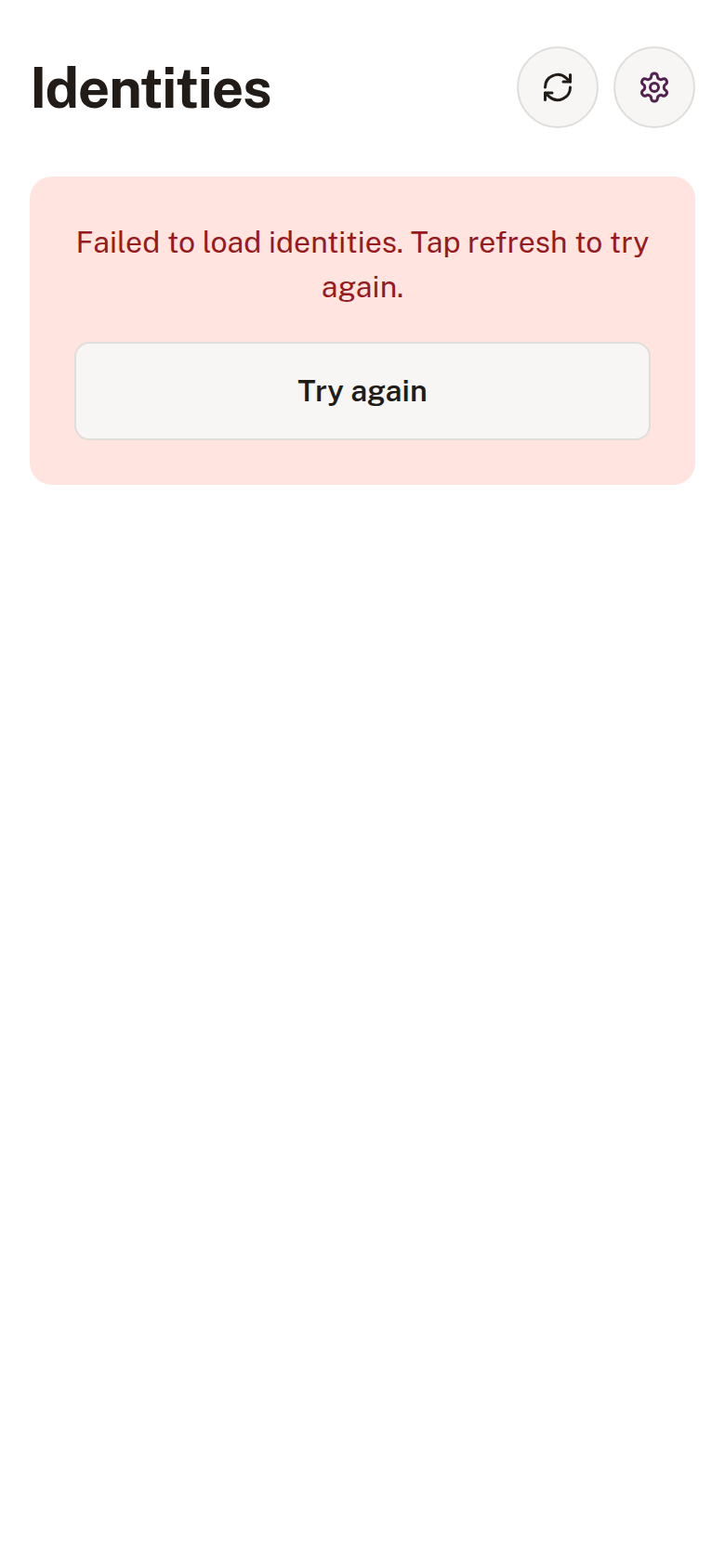
Local failures are surfaced inline with a way to retry, never a dead end.